
sleepychat guide
How to set up multi-stream chat in OBS for Twitch, TikTok, YouTube, and Kick
This step-by-step guide shows how to set up SleepyChat as a multi-stream chat browser dock or overlay in OBS so you can read Twitch, TikTok, YouTube, and Kick messages in one place.
If you want the product overview first, read the multi-stream chat page.
Why set up multi-stream chat in OBS?
Multistreaming splits your community across platforms. A unified chat overlay keeps every message in one place, so you can respond faster and keep viewers engaged without juggling multiple chat windows. In SleepyChat, you can use that unified chat as either an OBS browser dock for yourself or an on-screen overlay for your viewers.



















Step 1: Create your first multi-stream chat feed
Chat Feeds are saved chat layouts that control what your combined feed looks like. Think of them as different chat views that you can use for different contexts. For example, we might create one to display as an on-screen overlay for viewers, and another to read ourselves while we stream.
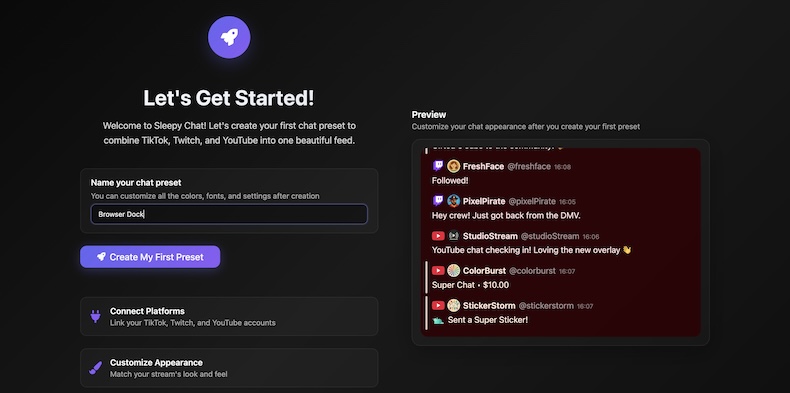
Start by signing in to sleepychat and creating your first Chat Feed on the Onboarding Page. Let's focus on creating our "Streamer View" chat feed. Later, we can copy it to a new Chat Feed, which we'll display to our viewers as an overlay.
Step 2: Link Twitch, TikTok, YouTube, and Kick
Connect your Twitch, YouTube, and Kick accounts and enter your TikTok username from the Dashboard page. Once linked, every platform you use can stream into the same chat feed. Once your accounts are connected, you can start editing your chat feed.
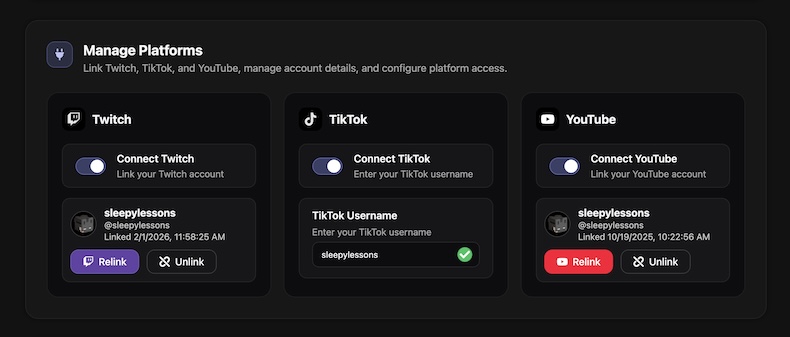
While Twitch, YouTube, and Kick need to be linked to your actual accounts, for TikTok you can just enter your username.
Step 3: Customize your chat feed
Choose fonts, colors, spacing, highlight rules, and which message elements appear (icons, badges, usernames, timestamps, and more).
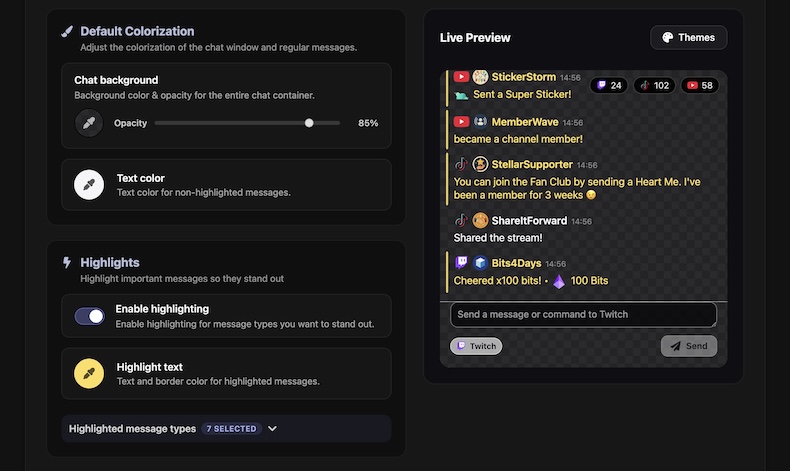
Use the Live Preview to see what your chat window will look like as you change configuration in real time. Make sure to save your changes once you're happy with your chat feed.
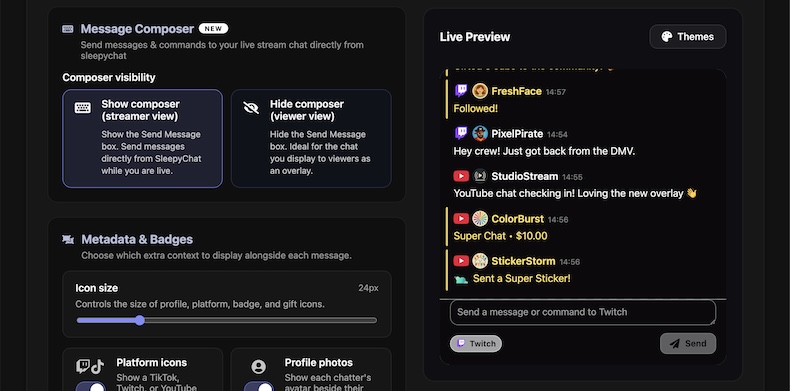
We highly suggest turning on the new "Message Composer" feature for your "Streamer View" chat feed. This will allow you to send messages and commands to Twitch chat directly from sleepychat.
Remember to save your changes once you're happy with your chat feed.
Step 4: Copy your chat window link
Copy your chat window link. Make sure not to share it with anyone else. The unique link acts sort of like a simplified username/password combo and gives anyone who has it permissions to send messages and commands to your chat.
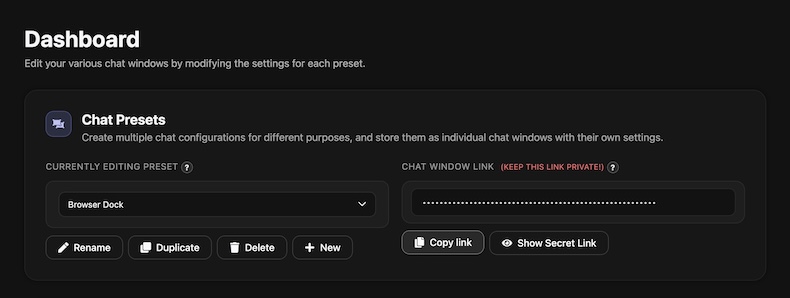
Step 5: Embed your chat window as a Browser Dock
Take your chat window link, and open OBS or similar streaming software. This is the easiest way to use SleepyChat as your own multi-stream chat dock while you stream. Go to:
OBS Toolbar > Docks > Custom Browser Docks
Name your dock "SleepyChat", and paste in your chat window link in the URL field. Then click "Apply".
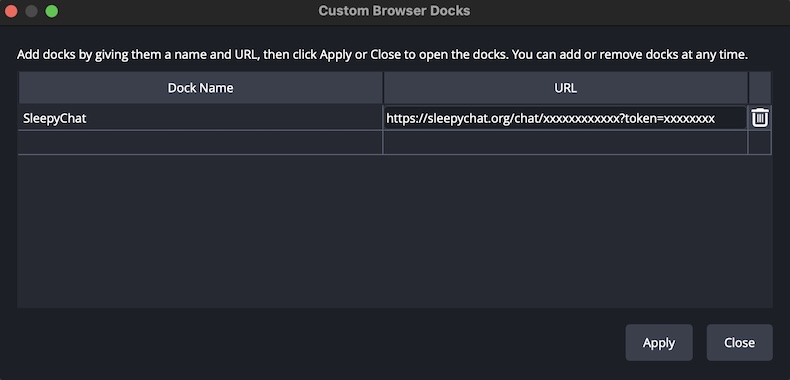
Now when you open OBS Toolbar > Docks, you should see your new "SleepyChat" dock at the very bottom of the list.
Click on it to open it, and drag and drop it to your desired docking location.
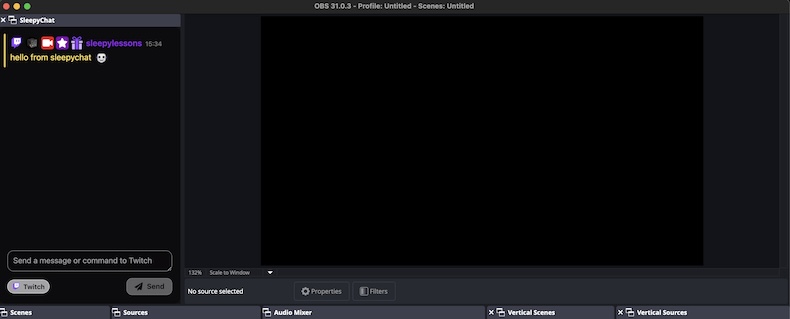
Now you can see your combined chat window directly in OBS! If you'd rather not use a dock, you can also just open the chat window link in a browser window.
Step 6: Make another chat feed for your viewers
Now that we have our "Streamer View" chat feed, we can copy it to a new chat feed, which we'll slightly modify to display as an on-screen overlay for our viewers.
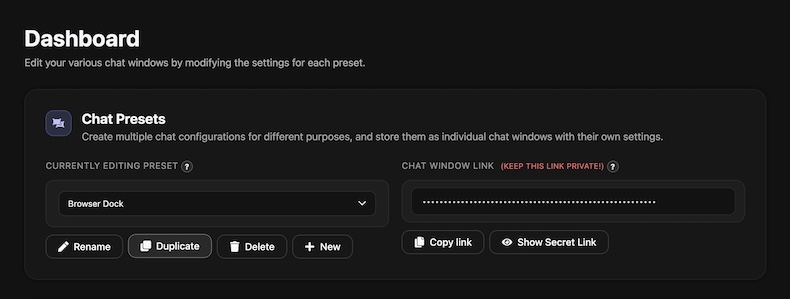
Go to your Dashboard, and click the "Duplicate" button under your existing Chat Feed.
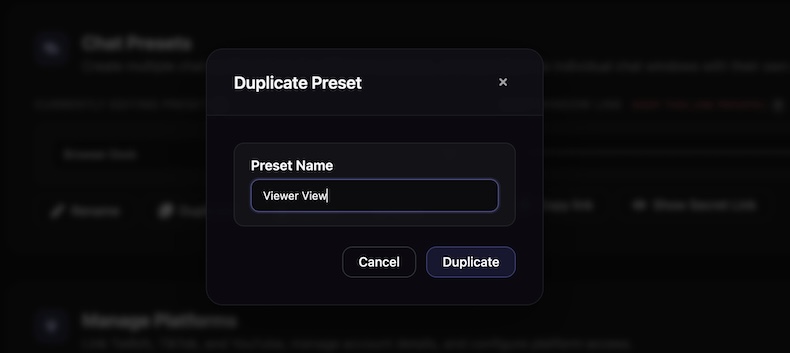
Let's enter a name like "Browser Source" or "Viewer View" so it's clear what it's for. Then click "Duplicate" to create this new chat feed.
For this one, let's hide the "Message Composer" feature, choose display options that suit our stream's style. Then click "Save" to save our new chat feed.
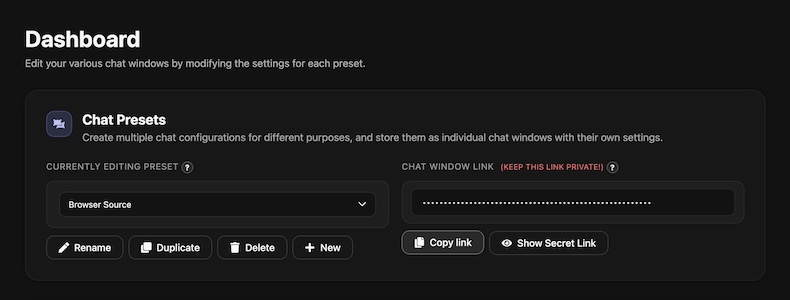
Finally, we scroll back to the top of the page and copy the chat window link, as we did before for our other chat feed in Step 4. Double check to make sure that the "Currently Editing Chat Feed" to the left is the new chat feed we just created.
Step 7: Create a Browser Source overlay for your viewers
Open OBS, then go to:
Sources Dock > Click the + Icon > Browser
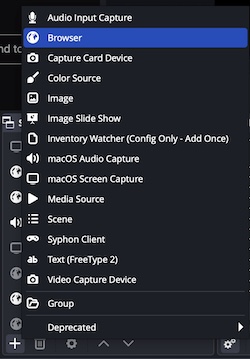
Select the "Create New" option, and name it "SleepyChat" and click ok.

Then we paste our chat window link that we copied at the end of Step 5 into the URL field, and click OK. You can optionally define a width and height for the browser source at this time as well.
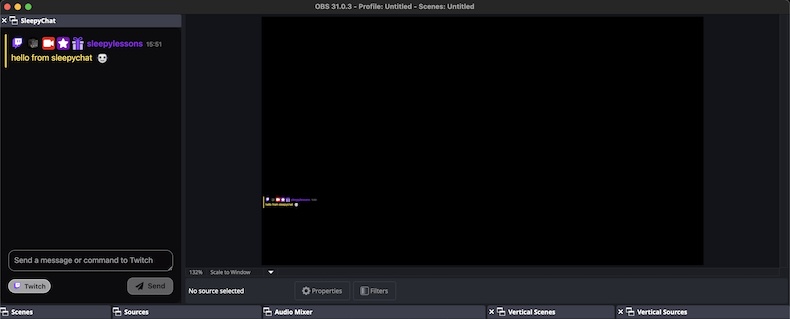
Now just position your chat window where you'd like it to appear, and voila! You have a combined multi-stream chat overlay for your viewers.
Need the OBS-specific version of this guide?
If you already understand the basic SleepyChat setup and just want the OBS side of the workflow, use the browser dock and browser source guide next.
Want the more info on our multi-stream chat?
If you want the bigger-picture overview of how SleepyChat handles multi-stream chat, OBS docks, overlays, TTS, and customization, read the main multi-stream chat page next.
Next article: Set up Text-To-Speech
sleepychat’s Text-To-Speech works across Twitch, TikTok, YouTube, and Kick using the same chat windows you just set up. Simply enable TTS, configure it, and TTS audio will come directly through your existing chat windows when triggered.
Need more help?
If you are having trouble setting up sleepychat, please reach out to us on Discord.
We're always here to help!