
sleepychat guide
How to use multi-stream chat in OBS as a browser dock or browser source overlay
This guide shows how to run SleepyChat inside OBS so you can read every message from Twitch, TikTok, YouTube, and Kick in one place. You can use it as a browser dock for yourself, a browser source overlay for viewers, or both at the same time.
If you still need the full account-linking walkthrough first, start with the main multi-stream chat setup guide.
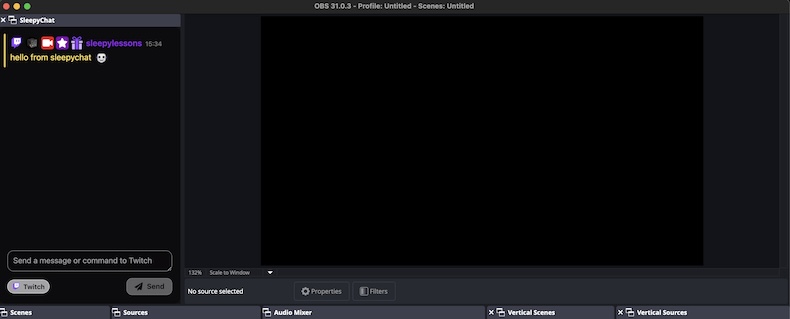
Browser dock vs browser source overlay
Use a browser dock when you want SleepyChat visible inside OBS for yourself while you stream. Use a browser source overlay when you want your audience to see the chat feed on stream. Most creators keep one feed for themselves and then duplicate it into a second feed for the viewer-facing overlay.
Step 1: Copy your SleepyChat chat window link
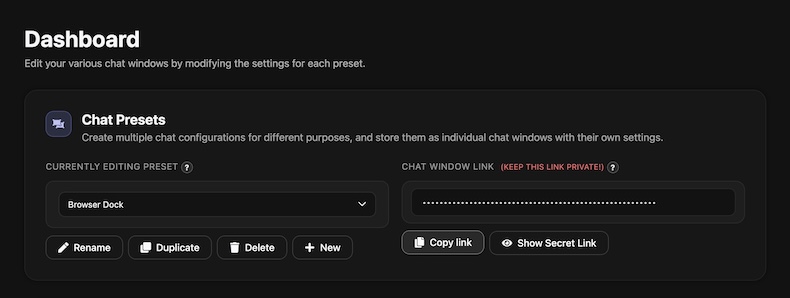
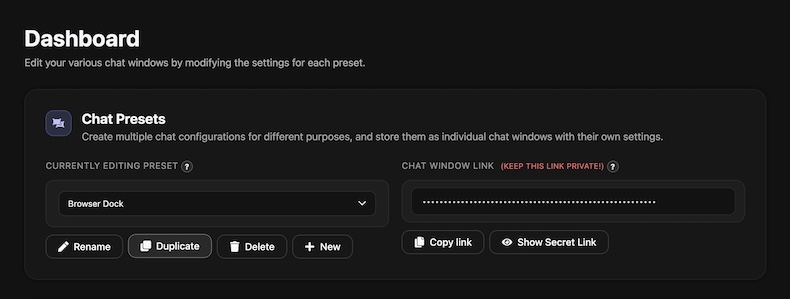
Open your Chat Feed in the Dashboard and copy its chat window link. That is the URL OBS will load in both the browser dock and browser source flow.
Step 2: Add SleepyChat as an OBS browser dock
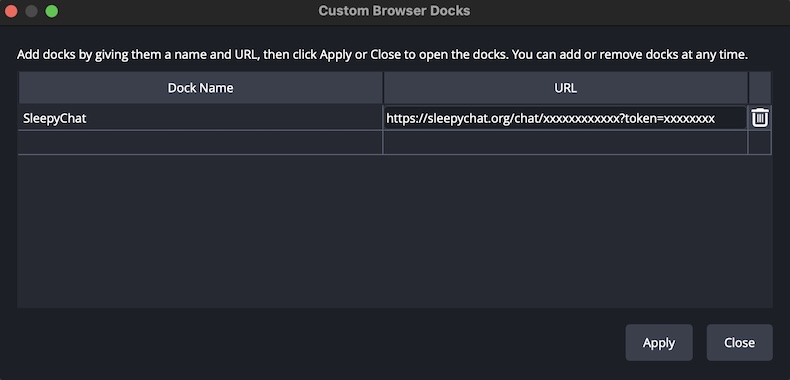
In OBS, go to Docks > Custom Browser Docks. Name the dock, paste in your SleepyChat link, and click Apply. OBS will add SleepyChat as a dockable panel you can keep next to your scenes, mixer, and controls while you stream.
Step 3: Add SleepyChat as a browser source overlay
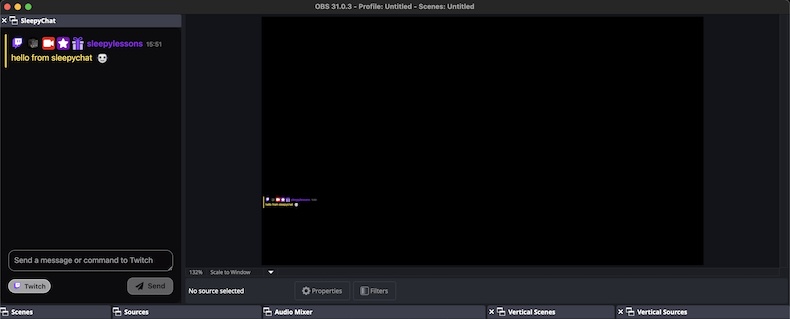
If you want viewers to see your combined chat on stream, add a new OBS Browser Source and paste in the same SleepyChat link. You can size and position it like any other browser source.

Step 4: Make separate feeds for streamer view and viewer view
Your browser dock and your on-stream overlay do not need to look the same. Duplicate your main Chat Feed, keep the streamer version practical for reading and replying, and simplify the viewer version for on-screen presentation.
A common setup is:
- Streamer feed: message composer on, denser layout, more detail visible.
- Viewer feed: cleaner layout, fewer controls, styled to match your stream scene.
Next steps
Once your OBS setup is working, you can keep building on it with text-to-speech, sound alerts, and custom overlays.